
You manage everything about paying for Smartsupp in Settings → Billing: your package and its expiry date, billing details, payment methods, invoices, plan changes and automatic renewal. An invoice is available there right after each payment and is also sent to your billing email address.
We've broken the article into a few sections:
My package
You can see what package you have and when it expires.
Where to change your billing info?
If you have already inserted your billing information during payment, you can edit it here. Every time you buy your package you will receive an invoice to the Billing email address.
Tip: If you need to update any information that appears on your invoice, change it in the Billing information section and click on the save button. The changes will be applied on the last invoice only.
Can't edit the billing e-mail? On accounts billed through Stripe (the newer checkout with the Customer portal) the billing e-mail is read-only in the dashboard. Write to us in the chat with the new address and we'll change it in the payment system; your invoices will go to the new address even if the dashboard still shows the old one.

Payment method
You manage your payment methods directly in your dashboard: open Settings → Billing → Subscription and click Open in the Customer portal card — it lists your saved payment methods and invoices. The saved payment method is charged automatically at each renewal.

Update or change a payment method
In Smartsupp open Settings → Billing → Subscription.
In the Customer portal card click Open.
Select Add payment method and enter your new card details.
The new payment method will be used automatically for future renewals. Afterwards you can delete the old one. Older accounts billed through Braintree (the payment error mentions "Braintree") don't have the Customer portal: in Settings → Billing → Subscription, click Edit in the Payment method card and add, change or remove your card there.

Remove a payment method
In Smartsupp open Settings → Billing → Subscription.
In the Customer portal card click Open.
Delete the payment method you no longer want to use.
⚠️ With auto-renewal enabled you must keep at least one valid payment method on file. To remove all payment methods, first turn off auto-renewal — see the Automatic renewal section below.
On older accounts billed through Braintree there is no Customer portal: in Settings → Billing → Subscription click Edit in the Payment method card to add, change or remove a card.
You can pay in CZK, EUR, USD or PLN.
Want to know what you can pay with? Payment methods — how can I pay?
Troubleshooting: "Braintree 3DS flow error"
If you see the message Braintree 3DS flow error when paying or changing your card, the payment did not pass your bank's 3D Secure verification. Try the following:
Clear your browser cookies and try again in a different browser or in an incognito window.
Confirm the 3D Secure verification from your bank (an SMS code or a confirmation in your banking app).
Paying with American Express? Accounts billed through Braintree don't accept Amex — add a Visa or Mastercard card or PayPal instead. These accounts have no Customer portal: change the card in Settings → Billing → Subscription by clicking Edit in the Payment method card.
If the error keeps appearing, contact our support. We can remove the old saved payment method or adjust the verification for your account and help you complete the payment.
Good to know: If your bank replaced your card (even with the same number and only a new expiry date or CVC) and a payment fails, update the card details in Settings → Billing → Subscription → Customer portal. On older accounts billed through Braintree, update it in Settings → Billing → Subscription by clicking Edit in the Payment method card.
Where to find your invoices?
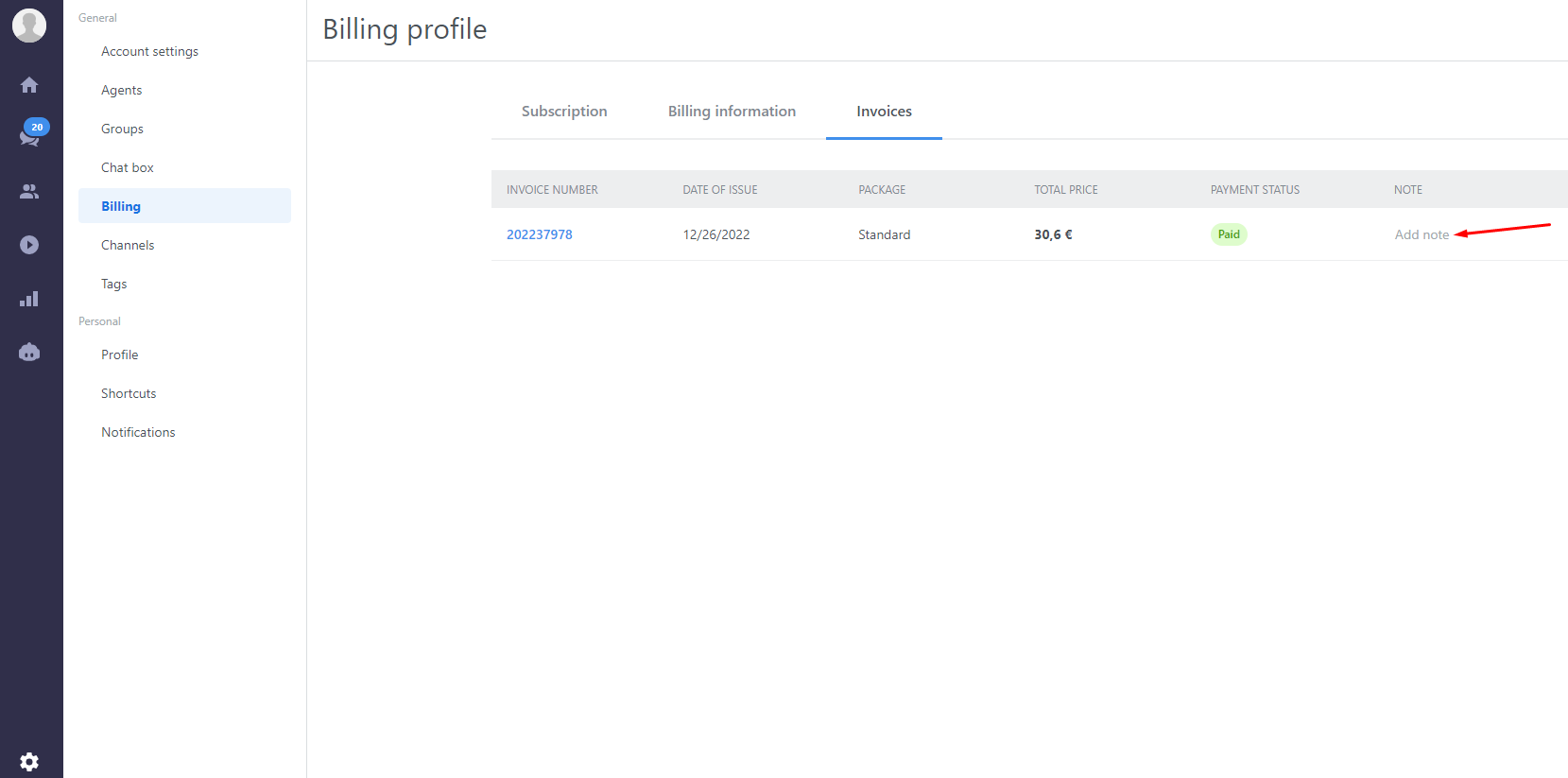
Here you can see all of your invoices. If you wish to add a note, just click on Edit in the Note column. The note will appear on the invoice automatically.
How can I buy a subscription?
To buy a subscription, open Settings → Billing → Subscription, click Edit next to your package and choose the plan that suits you.

In the next step choose the number of agents and Flow (formerly chatbots) conversations. Here you can also purchase Mira AI add-on.
Adding Mira AI in the middle of a billing period? The Mira AI add-on shares the billing period of your plan. If you add it mid-period, you pay a pro-rated price only for the time left until your plan's renewal date, and the next invoice includes the full price of the plan and Mira AI together. The exact amount is shown in the summary before you confirm the purchase.

You can see the price for your annual/monthly subscription in the summary on the right side. In the final step, you can insert your payment method. After your payment is confirmed you'll be able to boost your sales through live chat and Flows!
How can I change the number of agents?
Go to Settings → Billing → Subscription, click Edit and choose the package you want to use. Subsequently, you can choose the number of agents. You only select the number of agents that you'd like to add.
If you increase the number of agents, the change takes effect immediately. You only pay the pro-rated price difference for the rest of your current billing period, and your renewal date stays the same. Before confirming, you will see a summary of exactly what you are paying for.
If you decrease the number of agents, the change is scheduled for the end of your current billing period. Nothing is charged and no credit is created: the agents you have paid for stay available until your renewal date, and the lower number applies from the next period.
How can I buy Flow conversations?
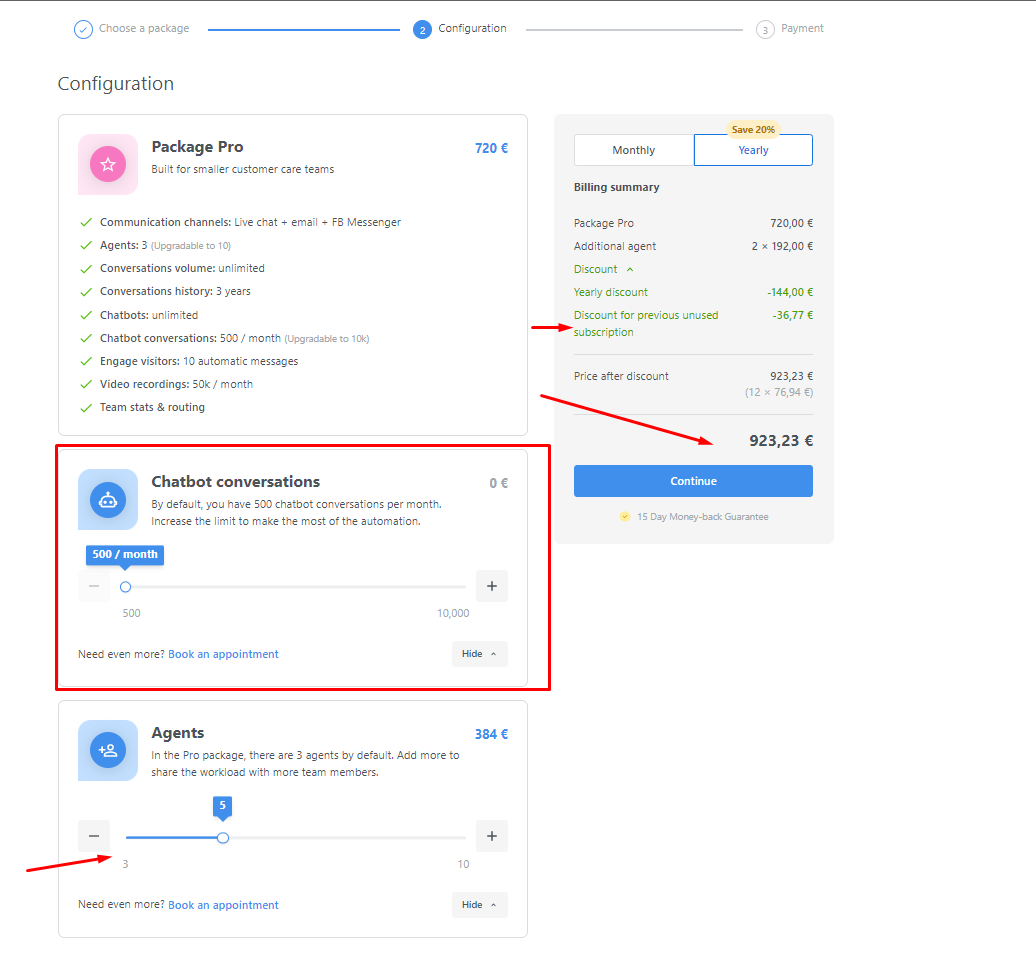
You have an option to buy supplementary Flow conversations the same way as you purchase the agents. Go to Settings → Billing → Subscription, click Edit and choose the package you want to use. Subsequently, you can choose the number of additional Flow conversations. You can see more information in this tutorial.
The same applies to decreasing the number of Flow conversations: the lower number takes effect on your renewal date.

Automatic renewal
Once you make a payment, automatic renewal is activated, so you do not have to think about renewing your subscription once it is over. If you wish to turn it off, you can do it in the Payment method:
⚠️ If you wish to remove all payment methods, ensure that auto-renewal is disabled first to avoid service interruptions. This can be managed in the Billing section of your dashboard.

In newer accounts, the interface may be different. If you can't find this option, please click on the pencil icon next to "Automatic renewal," as shown in the picture below.

With deactivated automatic renewal your account will be blocked automatically once your subscription is over. You will get an email notification and you will also see a warning in the dashboard that your subscription is about to expire.
Unpaid invoice (failed payment)
If a renewal or upgrade payment doesn't go through (for example the card was declined or the 3D Secure confirmation failed), the invoice for that period stays unpaid and your subscription is marked as past due. Until the invoice is paid, you can't change your plan: the checkout shows You have an unpaid invoice. Pay it first, then you can change your plan. together with a link to pay it.
To settle the invoice:
Click Retry payment in the notification bar at the top of your dashboard (We had trouble processing your payment), or use the pay link in the checkout message.
If your card was declined, check the limit or the 3D Secure confirmation with your bank, or update your payment method first (see the Payment method section above), then retry.
You can check the invoice and its Payment status in Settings → Billing → Invoices.
As soon as the invoice is paid, your subscription is active again and you can change your plan as usual.
⚠️ Note: If the payment keeps failing after you've retried, or the Retry payment button doesn't respond, contact our support team and we'll check the invoice on our side.
How can I change my package?
You can switch between the SOLO, PLUS, EXPERT, and ULTIMATE plans at any time in the Billing section of your Dashboard.
An upgrade to a higher plan takes effect immediately. You only pay the pro-rated price difference for the rest of your current billing period, and your renewal date stays the same.
A downgrade to a lower plan takes effect at the end of your current billing period. Your current plan keeps running until your renewal date, and the lower plan with its lower price starts with the next period. You can cancel a scheduled downgrade at any time before it takes effect.
How can I change my billing period?
If you've decided to switch to the yearly subscription, you can change the settings yourself in your account.
Simply open Settings → Billing → Subscription, click Edit and choose the yearly subscription. Then, finish the new setup by following the individual steps of the payment process.
If you want to switch from the yearly to a monthly subscription, you can do it yourself the same way — the change takes effect once your current billing period ends.
Can I receive a proforma invoice?
Unfortunately, it is not possible to receive a proforma invoice. You will find your invoice in the Billing history once the payment has been made.
How long does it take for my subscription to become active after the payment?
It depends on your bank or payment provider. However, your subscription should become active several minutes after the payment has been made. Paid, but the dashboard still says your package has expired? First check that you are logged into the account connected to your website — one e-mail address or company can have several Smartsupp accounts (for example an older test account). If the right account still shows no active plan after a few minutes, contact our support with the e-mail of the paid account and your payment confirmation and we'll match the payment for you. Your bank can confirm the payment, but it can't activate your plan.
Refunds
💡 You can request a full refund for any reason within 15 days of the very first payment of a new account; renewals, upgrades and add-ons are not refundable. This refund only applies to your first payment, unless otherwise stipulated in our Terms of Service or DPA.
Full details in Refunds — how does the money-back guarantee work?. Paid the same invoice twice? Duplicate payments are returned to you automatically.
What can I do if my VAT is not accepted?
We use a 3rd party system called VIES to verify our clients' VAT numbers. You can verify it yourself here.
Usually, the VAT is not accepted because it is not allowed to perform foreign payments.
What's next?
Payment methods — how can I pay? — which cards and payment options you can use.
How to cancel your subscription or downgrade your plan — how to stop payments or move to a lower plan.
Which package should I choose? — compare the plans and pick the right one.